
Short answer
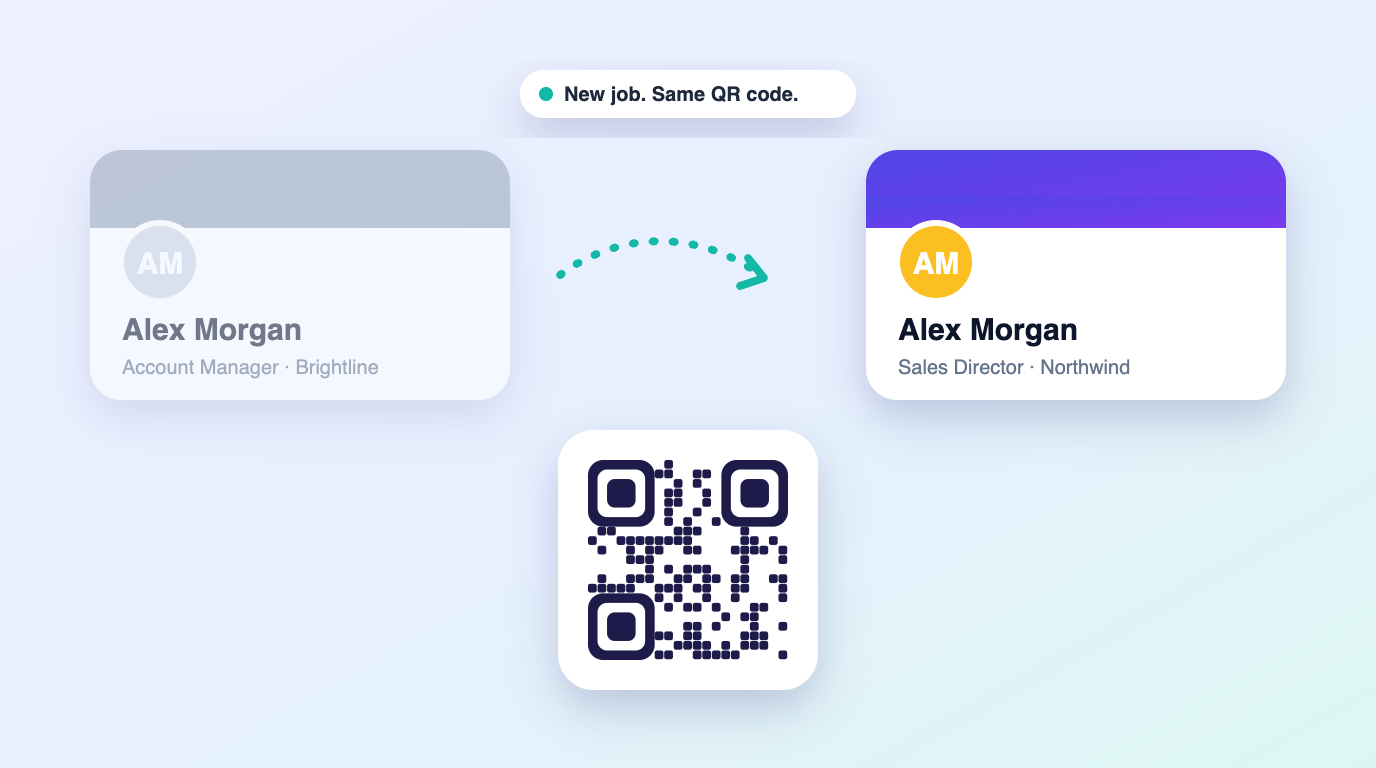
It depends on who holds the account. A card issued on your employer’s team plan usually stays with the employer. A personal card stays with you, and if it uses a dynamic QR code you can update your title, company and email without reprinting anything. Contacts people already saved to their phones do not update on their own, so share your card again after the move.
A paper business card goes in the bin the day you hand in your badge. A digital card is supposed to be better than that, but plenty of people discover on their last day that their card, link and QR code belong to their employer, or that the QR code on two years of conference badges now points at a page that no longer exists.
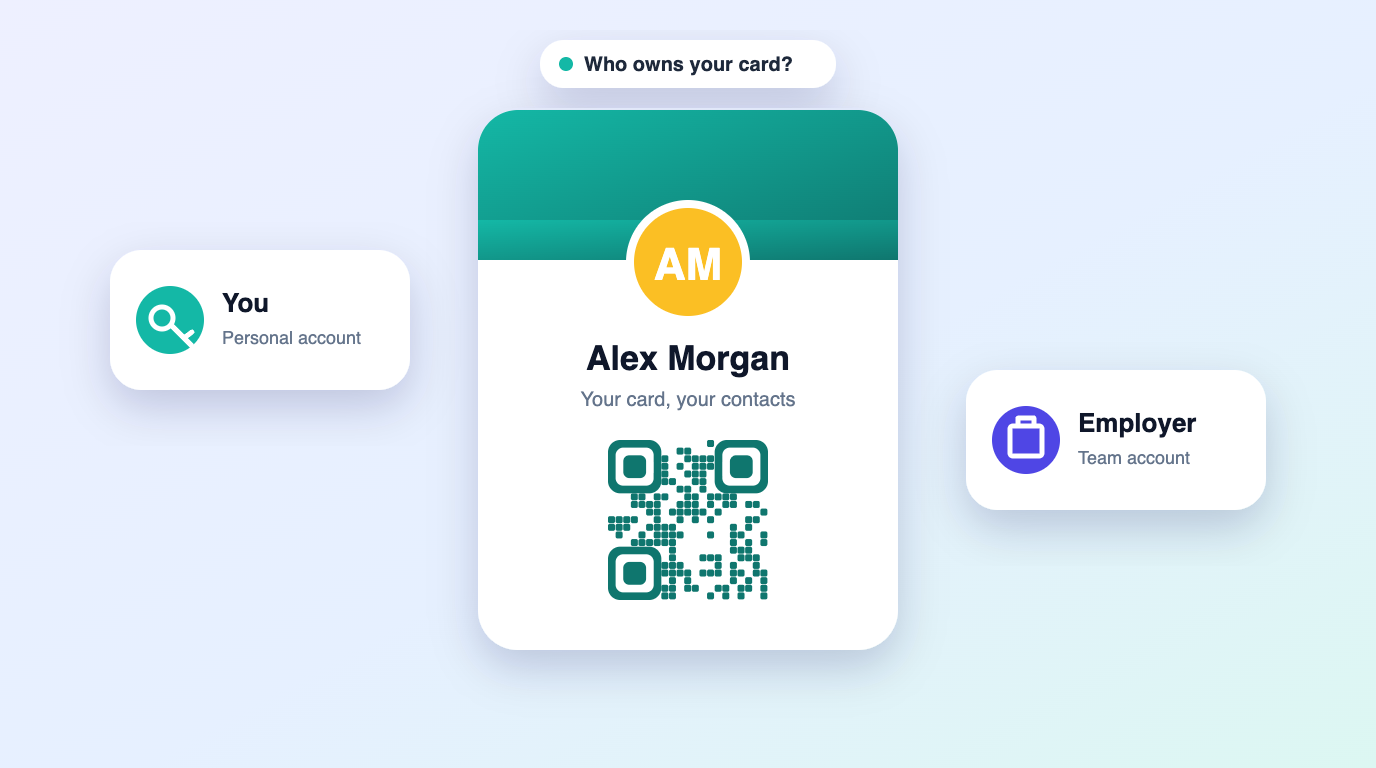
What actually happens depends on two things: who owns the account behind the card, and whether your QR code is static or dynamic. This guide walks through the common setups and gives you a checklist for both sides of the move.
The three setups, and what each one does when you leave
| Your setup | What happens when you leave | Your printed QR codes |
|---|---|---|
| Company-issued card on a team plan | Your admin usually deactivates or reassigns the seat. The card, link and any leads collected stay with the company. | Often redirected to a colleague or the company site, or switched off. |
| Personal card on a monthly subscription | The card is yours as long as you keep paying. Premium features can switch off if the subscription lapses. | Keep working while the plan is active. |
| Personal card with a one-time license | The card is yours. You update your details and keep going. | Keep working and open your updated details. |
What can break when you change jobs
Printed QR codes
A static QR code holds your details inside the pattern itself, so a code printed with your old title and company email is wrong forever. A dynamic QR code holds a short link to your online card, so it opens whatever you put on the card today. If you expect to change roles over your career, a dynamic code you control saves you from reprinting stickers, badges and slides.
Email signatures and links
Every email you sent at your old job still carries your old signature. If that signature links to a card on a company account, it will stop working or point to someone else once the seat is reassigned. If it links to a personal card, old emails keep leading people to your current details.
Contacts already saved in other people’s phones
This is the part most guides skip. When someone taps "Save contact", their phone stores a snapshot of your details as a standard .vcf contact. That copy lives on their device and does not update when you edit your card. They will see your new details the next time they open your card link or scan your QR code, but their saved contact keeps your old number until they save it again.
That is not a flaw in any one product. It is how phone contacts work. The practical fix is simple: after you move, reshare your card with the people who matter so they can save the new version.
Checklist: before your last day
- Find out who owns your card account. If it is a company seat, ask IT or your manager what will happen to it and when.
- Read your employment agreement on contacts and leads. Leads collected for the company usually belong to the company. Your personal network often does not, but the contract decides, not the app.
- Export what you are entitled to keep, such as your own contact details and personal connections, as CSV or vCard while you still have access.
- If you plan to keep using a personal card, remove your work phone and work email from it or mark them as ending soon.
- Do not delete or repoint a company-owned card yourself. Leave that to the admin so customers are not sent to a dead page.
Checklist: after you start the new role
- Update your title, company, email and phone on your personal card. A dynamic QR code will open the new details straight away.
- Refresh your Apple Wallet or Google Wallet pass if your provider requires it, so the pass on your phone shows the new role.
- Replace the card link in your new email signature and LinkedIn profile.
- Send your updated card to key contacts, clients and recruiters so they can save the new version on their phones.
- If your new employer issues team cards, decide whether to use both: the company card for company leads and your personal card for your long-term network.
Choosing a card that survives career moves
If you want one card for your whole career, look for three things: an account in your name rather than your employer’s, a dynamic QR code you can edit without reprinting, and a way to export your contacts at any time in open formats like CSV and vCard. Pricing matters too. A subscription you stop paying for in year three can switch features off at the worst moment, while a one-time license has no renewal date to miss.
Lifetime vCard is built around exactly that: a personal card you pay for once, with dynamic QR, wallet passes and unlimited edits, so a job change is a five-minute update rather than a fresh start.
Frequently asked questions
Will people who saved my contact see my new job automatically?
No. A saved contact is a snapshot stored on their phone. They see your new details the next time they open your card link or scan your QR code, and can save the updated version then. Resharing your card after a move is the reliable fix.
Can my old employer keep my digital business card?
If the card is on the company’s team account, yes. The company controls the seat, the link and usually the leads collected on it. A card on a personal account in your name stays with you.
Do I need to reprint anything after changing jobs?
Not if your QR code is dynamic and on a personal account. The same code opens your updated details. Static QR codes, and anything printed with your old company email, will need replacing.
Can I take the leads I collected with me?
It depends on your employment agreement and local law, not on the card app. Leads collected for the company generally belong to the company. Check your contract before exporting anything.